Unplanned Delivery Costs in SAP S/4 HANA Material Management.
In a perfect world, supply chain operations would be entirely predictable. A purchase order is cut, goods are shipped, and the invoice arrives matching the PO down to the penny. But in the real world of global logistics, surprises happen. Fuel surcharges spike, customs hold-ups incur demurrage fees, or a supplier simply forgets to add a freight charge to the original quote.
When these surprise charges appear on the final invoice without ever existing on the Purchase Order (PO), SAP classifies them as Unplanned Delivery Costs. Here is a breakdown of how SAP Materials Management (MM) handles these logistical curveballs, how they impact material valuation, and how to configure the system to route them exactly where Finance needs them.
Planned vs. Unplanned Costs
To understand unplanned costs, it helps to quickly define their opposite:
- Planned Delivery Costs: These are anticipated and negotiated. They are entered directly into the Purchase Order as specific types of condition (e.g., FRA1 for freight). When goods are received, the system expects these costs and provisions for them.
- Unplanned Delivery Costs: These are a complete surprise to the system. They were not entered into the PO conditions. The Accounts Payable team only finds out about them when the invoice arrives at their desk.
Because the system was not expecting them, SAP needs specific rules on what to do with this extra money during the Invoice Verification process (transaction MIRO).
How SAP Handles the Surprise (MIRO)
When an AP clerk enters an invoice in MIRO and sees a surprise $500 freight charge, they enter this amount in the “Unplanned Delivery Costs” field on the Details tab.
SAP offers two main ways to overcome this financial burden, configured via the system’s backend (IMG):
1. Distribute Among Invoice Items (The Default)
The system takes the unplanned cost and automatically spreads it across the materials in the invoice. The distribution is usually proportional to the invoiced value of the items.
Example: If Item A makes up 80% of the invoice value and Item B makes up 20%, an unplanned freight charge of $100 will be split: $80 charged to Item A, and $20 to Item B.
2. Post to a Separate G/L Account
Instead of burdening the specific materials with the extra cost, a business might prefer to absorb all unplanned delivery costs as a general business expense. The system posts the total unplanned amount to a dedicated General Ledger (G/L) account (often a “Price Differences” or “Freight Expense” account).
Key insight: Choosing between these two methods is not just an IT decision, it’s a fundamental accounting policy. Distributing to items keeps material valuations highly accurate, while posting to a separate G/L keeps valuation stable but hits the company’s bottom line differently.
The Valuation Impact: Who Pays the Price?
If your company chooses to distribute the costs to the material items, the financial impact depends entirely on how you value your materials:
| Valuation Method | Impact of Unplanned Delivery Costs |
| Moving Average Price (MAP) | The cost is added to the inventory value. The moving average price of the material increases. The expense is only realized later when the material is consumed or sold. (Note: If stock coverage is insufficient, SAP routes the shortfall to a price difference account). |
| Standard Price (S) | The inventory value cannot change. The extra cost is immediately posted to a Price Difference Account, hitting the P&L as a variance immediately. |
Step-by-Step Configuration Guide
If you want to set up SAP to post unplanned delivery costs to a separate General Ledger (G/L) account, you need to adjust the backend configuration. Here is the step-by-step guide:
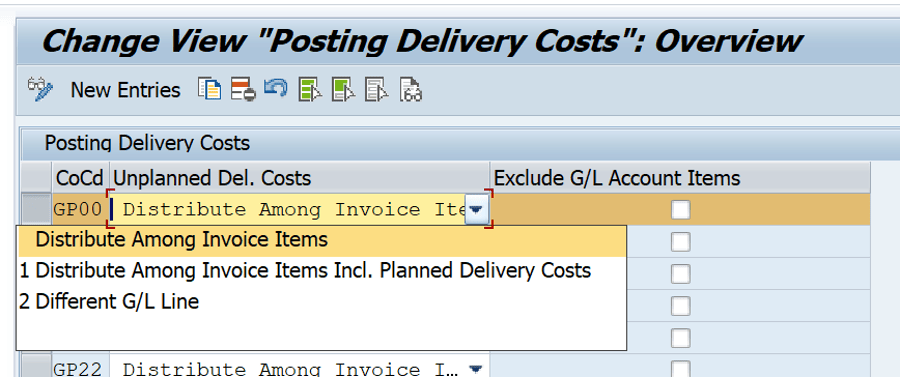
Step 1: Configure How Unplanned Costs are Posted (SPRO)
First, you must tell the system at the Company Code level to stop distributing the costs and instead create a separate G/L line item.
1. Enter transaction code SPRO and navigate to the SAP Reference IMG.
2. Follow this path: Materials Management > Logistics Invoice Verification > Incoming Invoice > Configure How Unplanned Delivery Costs are Posted.

3. Find your Company Code in the list.

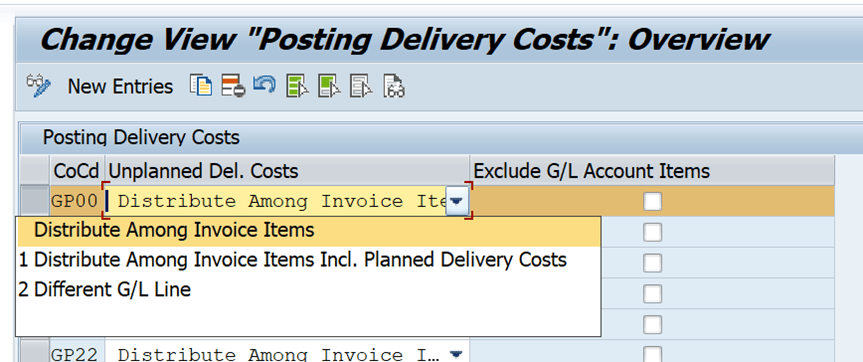
4. In the Unplanned Del. Csts column, change the setting from blank (distribute among items) to 2 (Different G/L line).
Use
In this configuration activity, you specify how the system posts unplanned delivery costs.
There are two options:
- Unplanned delivery costs are distributed among the individual items in proportion to the item amounts invoiced so far and the item amounts in the current invoice.
- The amounts determined are added to the respective item amounts.
- The amounts determined are posted in a separate line for each item.
- Unplanned delivery costs are posted in a separate line to a separate general ledger account. You must enter a specific tax code for the posting. You can define a default value for this in the Maintain Default Values for Tax Codes activity.
5. Save your changes to a transport request.
Step 2: Assign the G/L Account in OBYC
Now that SAP knows to post to a separate line, you must tell it which specific G/L account to hit using automatic account determination.
1. Enter transaction code OBYC.
2. Scroll down and double-click the Transaction Key UPF (Unplanned delivery costs).

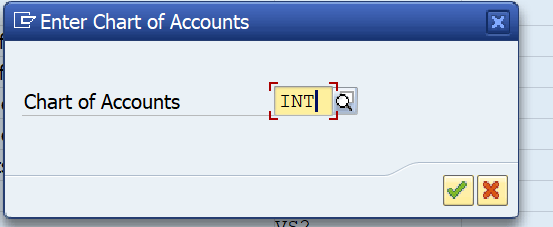
3. Enter your Chart of Accounts when prompted.
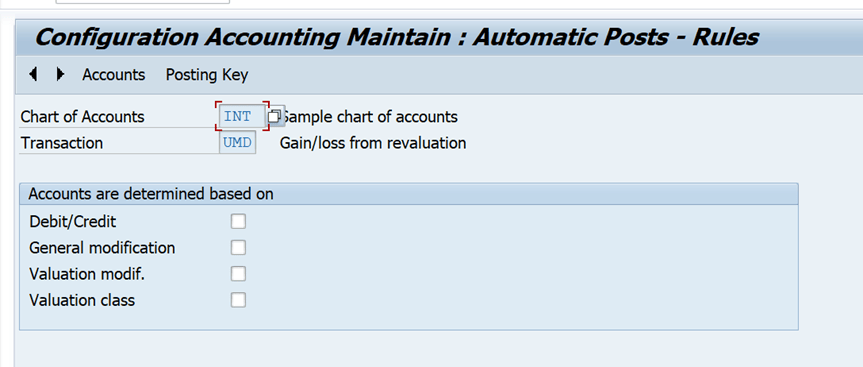
4. Define your rules (you can set the account to be determined by Valuation Modifier or Valuation Class, though many companies use a single catch-all account).
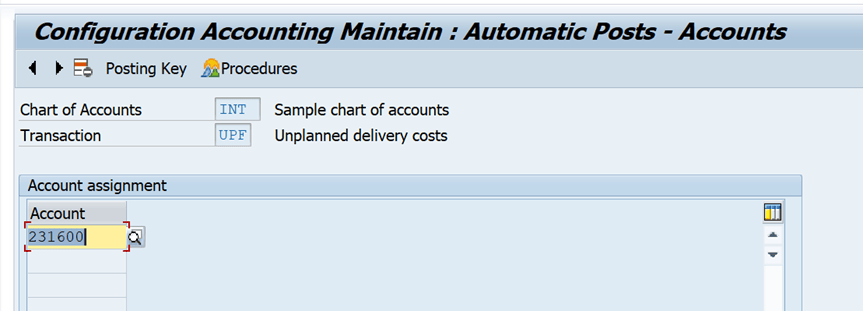
5. Enter the target G/L Account number that your Finance team has designated for these expenses.
6. Save your changes.
Step 3: Maintain Default Tax Codes
Because unplanned delivery costs are entered as a header-level amount in MIRO, the system needs to know how to calculate taxes on this specific amount.
1. Go to SPRO.
2. Navigate to: Materials Management > Logistics Invoice Verification > Incoming Invoice > Maintain Default Values for Tax Codes.

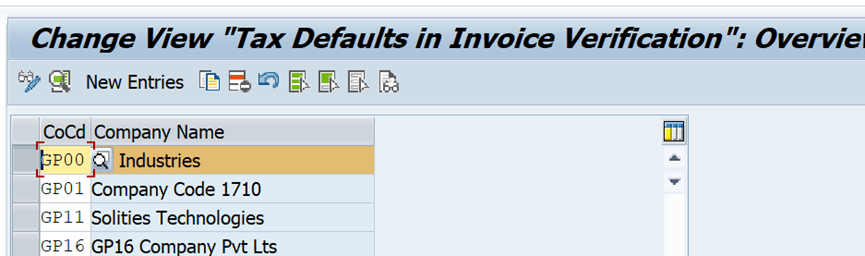
3. Assign a default tax code for your company code that will apply specifically to unplanned delivery costs.
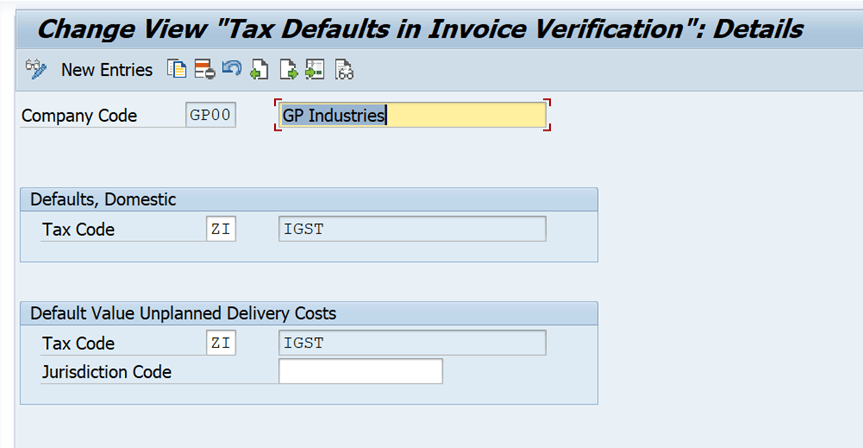
Step 4: Test the Setup in MIRO
You can find the PO and related GR which is used for this testing.
PO item 10, the quantity is 40 L so that 20L each is used for two cases.
PO item 10, the quantity is 200 PC, so that 100 PC each is used for two cases.

Case 1: Distribute Among Invoice Items is selected
To ensure the configuration is working correctly:
1. Open transaction MIRO.
2. Enter a purchase order with a valid goods receipt.

3. On the Details tab, enter a test amount in the “Unpl. Del. Csts” field.

4. Now you click on the calculate tax button and input other mandatory fields like Amount, Business place etc. Ensure the Balance on the right-side top is 0. Then click the Simulate button.

5. You should now see the distribution of amount to two lines.
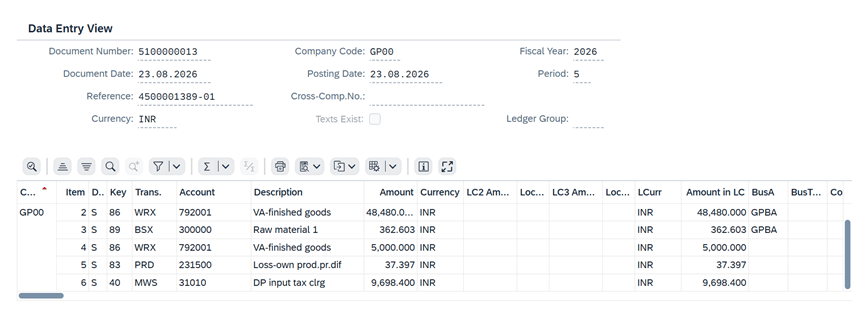
400 INR of unplanned delivery costs is distributed between two PO items as per the amounts. But you can see the G/L accounts are different, which is explained below. I have used two different types of Materials to cover both types of scenarios.
- Material with Moving Average Price- The unplanned delivery cost is directly loaded on the Inventory account- BSX.
- Material with Standard Price – The unplanned delivery cost is loaded on the Price difference account.

Once you post the document, system will post the Invoice and generate the Material Document. You can see the accounting entries as shown below.
Case 2: 2- Different G/L Line is selected.

To ensure the configuration is working correctly:
1. Open transaction MIRO.
2. Enter a purchase order with a valid goods receipt.

3. On the Details tab, enter a test amount in the “Unpl. Del. Csts” field.

4. Now you click on the calculate tax button and input other mandatory fields like Amount, Business place etc. Ensure the Balance on the right-side top is zero. Then click the Simulate button.

5. Now, you will see a distinct line-item routing the exact amount to the G/L account you mapped to the UPF key.

Once you post the document, system will post the Invoice and generate the Material Document. You can see the accounting entries as shown below.

The Bottom Line
Unplanned delivery costs are a reality of procurement. While SAP provides robust, automated ways to manage them through MIRO, heavily relying on them is usually a sign of poor vendor communication or inaccurate PO creation. The goal for any procurement department should be migrating as many unplanned costs into planned conditions as possible to ensure accurate forecasting, stable valuations, and smoother invoice clearing.
You can provide your valuable feedback.
Thanks, and Best Regads,
Ganesh Padala
You can check the below link for 120 Hours of SAP S/4 HANA MM Content:
Content of SAP S/4 HANA MM Videos
Discover more from GANESH SAP SCM
Subscribe to get the latest posts sent to your email.